

Walk Packets
A walk packet is a group of voters selected from one voter list for door-to-door outreach. Give it a name, assign teammates, and use it on a phone or print a PDF.
The list holds your outreach audience. The packet gives your team a specific part of that audience to work. A packet’s voters stay in the parent list, and results recorded in the packet are reflected in the list.
New to lists? Start with Voter Lists.
Before you start
You need a voter list with voters in it. Owners and managers can create and manage packets. Members can work all campaign packets; guests can work only packets assigned to them. See Roles & Access.
Choose a manageable area for the time your team has. The limit is 5,000 voters per packet, not 5,000 doors. Several voters may live at one address.
Auto Turf: start from a suggested walk
Auto Turf suggests walks from your voter list. Each suggestion includes a map, a door count, a walking distance, and an estimated walking time. Nothing is saved until you select Create packet.
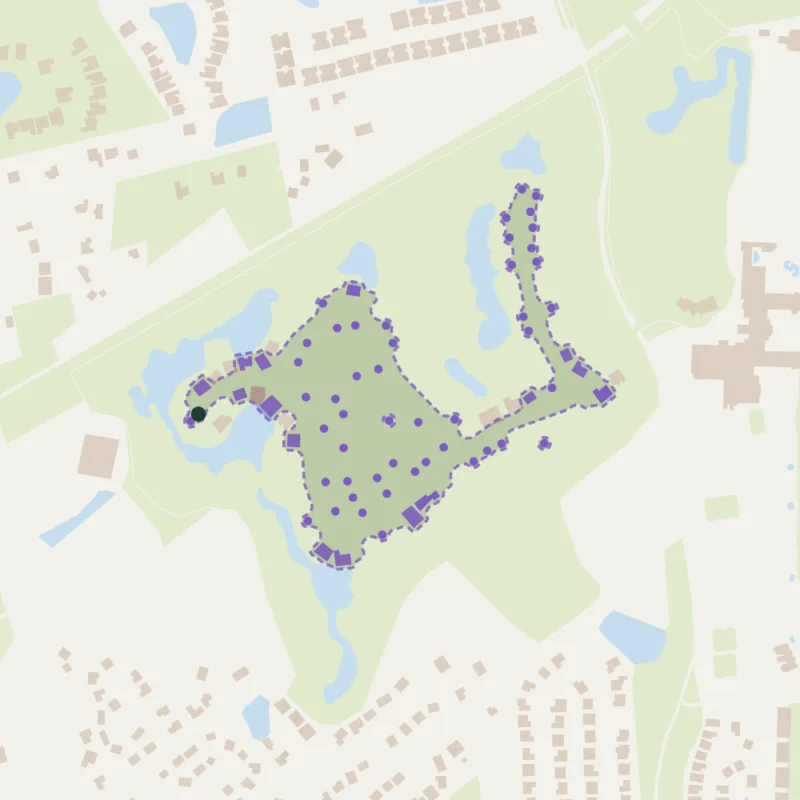 Suggested
Regatta Drive Walking Route
- doors
- 66 doors
- mi
- 1.9 mi
- min
- 39 min
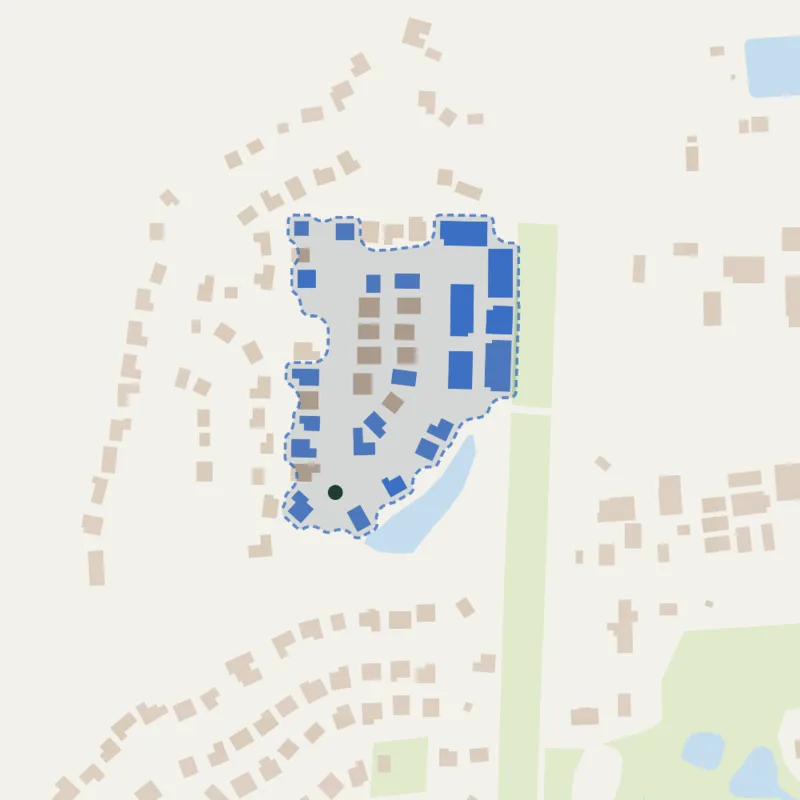 Suggested
Mackinas Circle Walking Route
- doors
- 35 doors
- mi
- 0.4 mi
- min
- 9 min
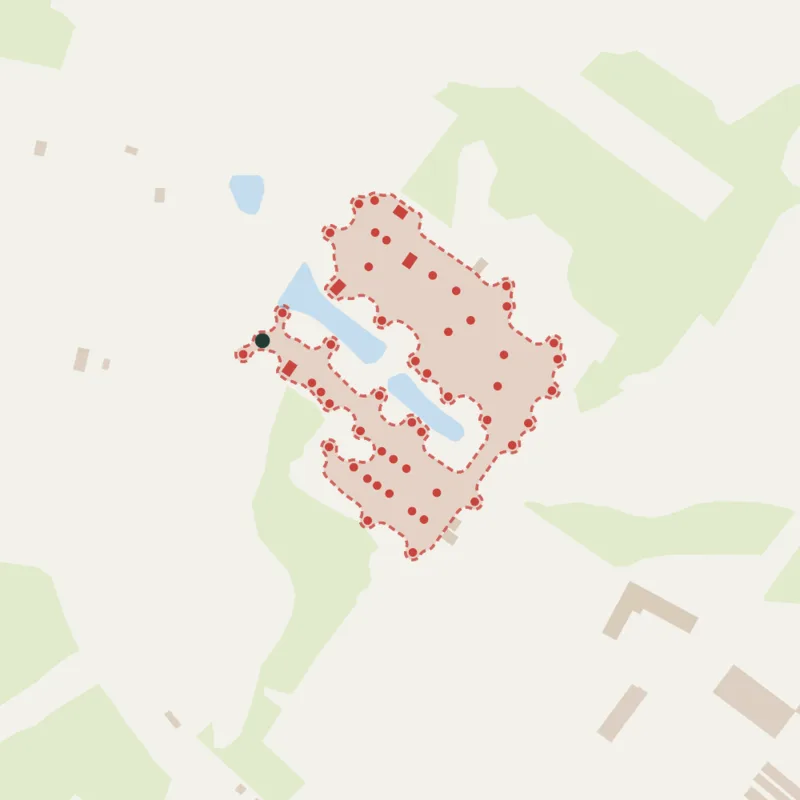 Suggested
Ingleham Circle Walking Route
- doors
- 57 doors
- mi
- 1.4 mi
- min
- 28 min
- Open a voter list and select the Walk Packets tab.
- Find Suggested walks beneath your existing packets. If suggestions are preparing, you can leave the page and return later.
- Select a suggestion’s map to preview the route, stops, and door count.
- Check the route against local walking conditions. Switch to satellite imagery to inspect homes where building outlines are missing. Map data cannot confirm that a gate is unlocked or a road is open to the public.
- Select Create packet to save the suggested selection.
- Open the new packet’s management options to assign volunteers.
Doors counts addresses, not voters. Several voters can share one door. The distance covers a return walk to the starting point. Walking time excludes door approaches and conversations. Leave additional time for those visits.
Suggestions exclude voters already assigned to a packet anywhere in the campaign. After you create a packet, suggestions refresh on this list and other lists that share those voters. Existing suggestions stay visible while the refresh runs.
You can see up to 12 suggestions at a time. A suggestion needs at least 30 doors and a route no longer than 4 km, about 2.5 miles. A small or spread-out list may have no suitable suggestions. Use manual selection below when you need a different area or a smaller packet.
Create a walk packet
- Open a voter list and select the Walk Packets tab.
- Choose New Walk Packet if the list has no packets, or Create New beside the existing packets.
- Click voter dots or draw a polygon, rectangle, or circle on the map. Check the selected voter count and reduce the area if it exceeds 5,000 voters.
- Give the packet a recognizable name, such as Riverside Saturday morning.
- Under Assign To, select the teammates who will work it, then save. You can also save without assignees and assign people later.
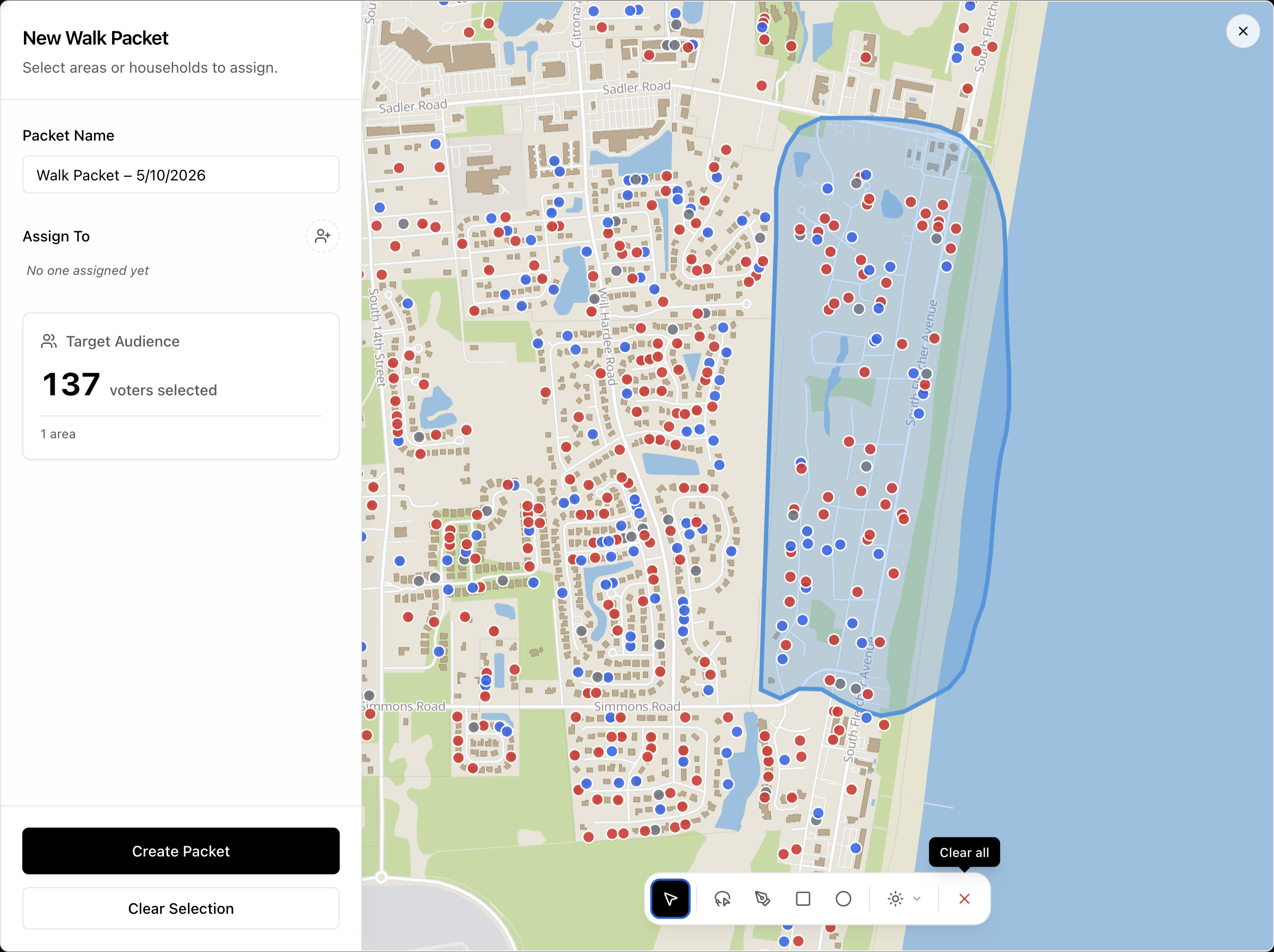
The selection uses voters in this list who are not already in a packet. Here, “unassigned” means no packet has been selected for the voter; it does not mean the packet has no teammates.
A voter can be in only one packet within the same list. Manually drawn packets can overlap across lists, but voters reserved by a suggested walk cannot be added to another packet. Different voters at the same address can still appear in different lists. Coordinate across lists if teams share a neighborhood.
Creating a packet does not remove voters from the list or reset their results. Adding more voters to the parent list later does not automatically add them to an existing packet.
Prepare your team
Open the packet’s management options to update its name, description, assignees, or Canvassing Script. Use the script for the introduction and questions volunteers should use at the door.
Before a shift, check that each volunteer can open their packet in the right campaign. Assigning a guest to a parent list is not a substitute for checking the packet’s own assignees.
Record a visit on your phone
- Open the packet’s walk view on your phone.
- Use the map or voter list to find an address.
- Open the voter you are speaking with and choose Support, Oppose, Undecided, or Not Home.
- Add a yard-sign request or a note when follow-up is needed.
- Check the save or sync status before moving on.
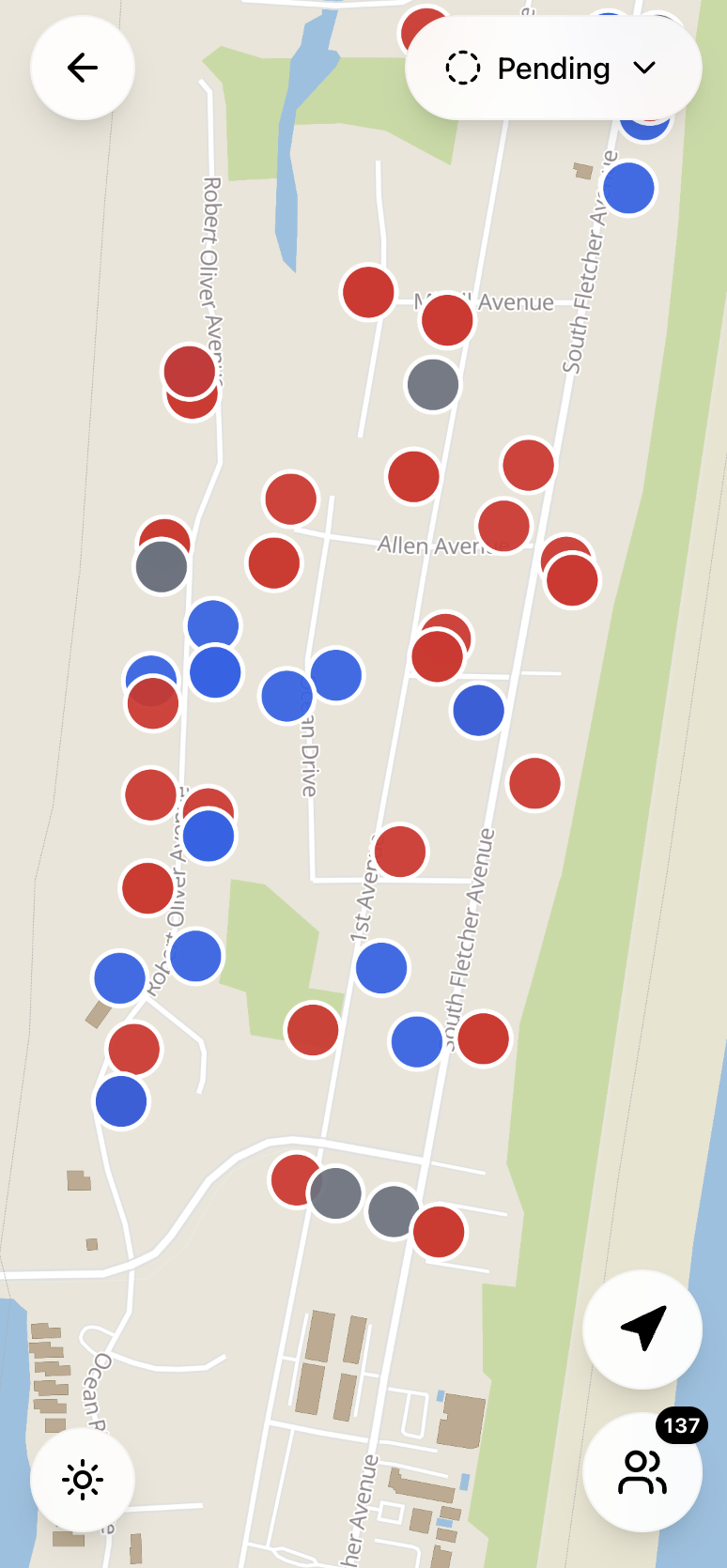
Map view — packet locations.
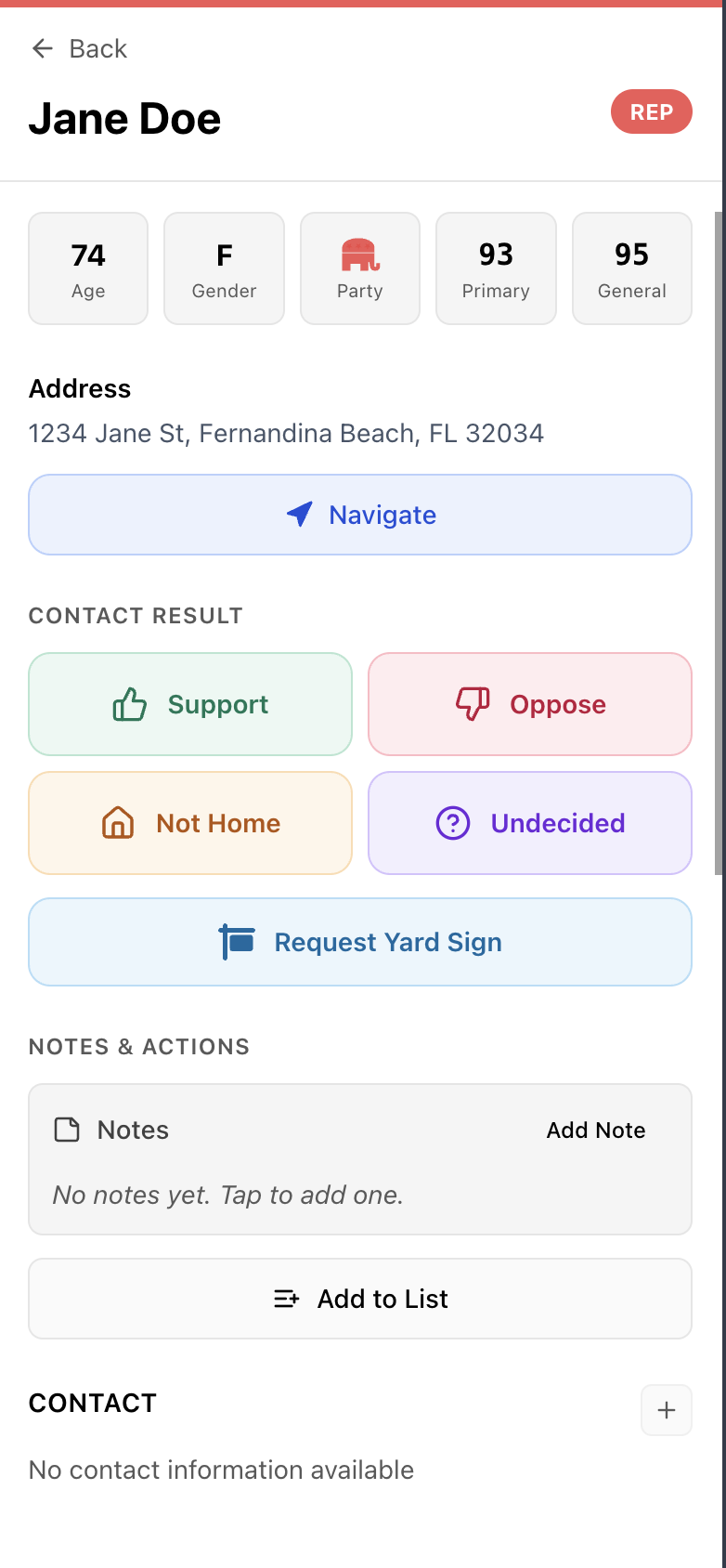
Voter detail — record a contact outcome.
An address can contain multiple voters. Review who is listed there and record results for the appropriate voters; do not assume one person’s answer describes everyone at the address.
Pending and Not Home mean different things
Pending means no contact outcome has been recorded. Not Home records an attempt, so those voters leave the pending group. Use the Not Home filter to find them again for a return visit.
Packet progress includes recorded attempts. It is not a count of conversations or supporters. Read the voter and door labels when comparing totals.
Working with a weak connection
Open the packet while connected before heading out so it can download in the background, and use the same device and browser where you prepared it. The sync status stays hidden while you are connected and nothing needs attention; it appears as Offline when you lose signal.
Changes made offline wait to sync. A status such as 3 pending means three updates are waiting to sync; this is different from the Pending voter filter. Reconnect and check that the pending count clears. If the status shows failed updates, tap the sync status to retry while online. If it says Offline copy expired, reopen the packet online to refresh it before heading out.
Do not clear browser data while updates are waiting to sync. Download a PDF before leaving if your team needs a paper backup.
Print or export a packet
Use the packet’s download options for a printable PDF or a CSV spreadsheet. Check the packet name before downloading so you hand off the intended area.
For paper canvassing or a backup. Configure title, sort order, page breaks, even/odd split, precinct info, and map context before generating. Enter paper results in Neurelect after the shift.
Download a CSV of every voter in the packet, with their contact status, notes, and key fields. Big packets build in the background and arrive ready to download. Use it for follow-up, review, or reporting.
Exports are copies taken at download time. Later changes in Neurelect will not appear in an existing file. Results written on paper must be entered in Neurelect to appear in campaign progress; editing an exported spreadsheet does not sync results back into the app.
Review progress and manage packets
The Walk Packets tab shows packets, assignees, and progress. Review the outcome breakdown to distinguish supporters, undecided voters, opposition, and attempted visits where nobody was home.
Owners and managers can rename, reassign, or delete a packet. Deleting a packet keeps its voters, contact results, and notes on the parent list. The voters become available for a new packet within that list. Deleting the parent list is a separate action.
Troubleshooting
| Problem | What to check |
|---|---|
| I cannot create a packet | You need an owner or manager role and a list with voters |
| The selection is empty | Voters must belong to this list, be available outside existing packets, and have usable map coordinates |
| No suggested walks appear | The list may not have enough available doors near each other. Draw a packet manually |
| Suggestions are still preparing | Leave the page and return later. If preparation fails, select Try again |
| A suggested packet cannot be created | Another teammate may have assigned those voters. Reload the suggestions and choose an available walk |
| A volunteer cannot see the packet | Confirm the campaign and their packet assignment, especially for guests |
| The map has fewer points than the voter count | Multiple voters can share an address; points and voters are different counts |
| Progress has not reached the rest of the team | Check the device’s connection and pending or failed sync updates |
| I need to revisit voters who were not home | Choose Not Home, rather than Pending |
Continue with Voter Lists for list membership and contact results, or Import Custom Voter Lists to build an audience from voter IDs.